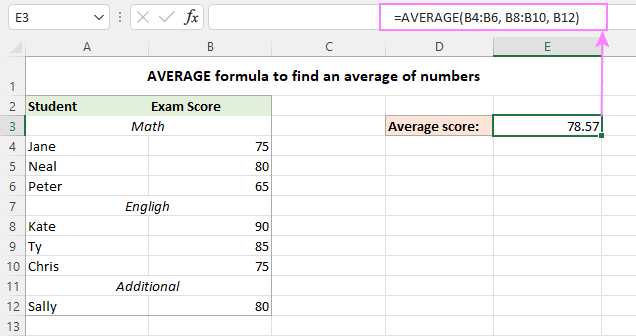
What if you only want the average of numbers above 50? Or sales from only Tuesdays? That’s where AVERAGEIF steps in like a filter-wielding ninja. Type =AVERAGEIF(, then your range, then a condition like “>50”, and Excel ignores losers below that. For multiple conditions, use AVERAGEIFS (yes, with an S). It’s like asking, “What’s the average grade for students who both showed up and passed the pop quiz?” Excel handles the snobbery for you.
Pro Tip for Lazy Days
You can also use the Status Bar at the bottom of Excel—select a bunch of numbers with your mouse, and watch the bar show their sum, count, and average instantly. No typing required. It’s so easy, it feels like cheating. Excel won’t judge—it’s here to serve you like a butler with a calculator in one hand and a coffee in the other.
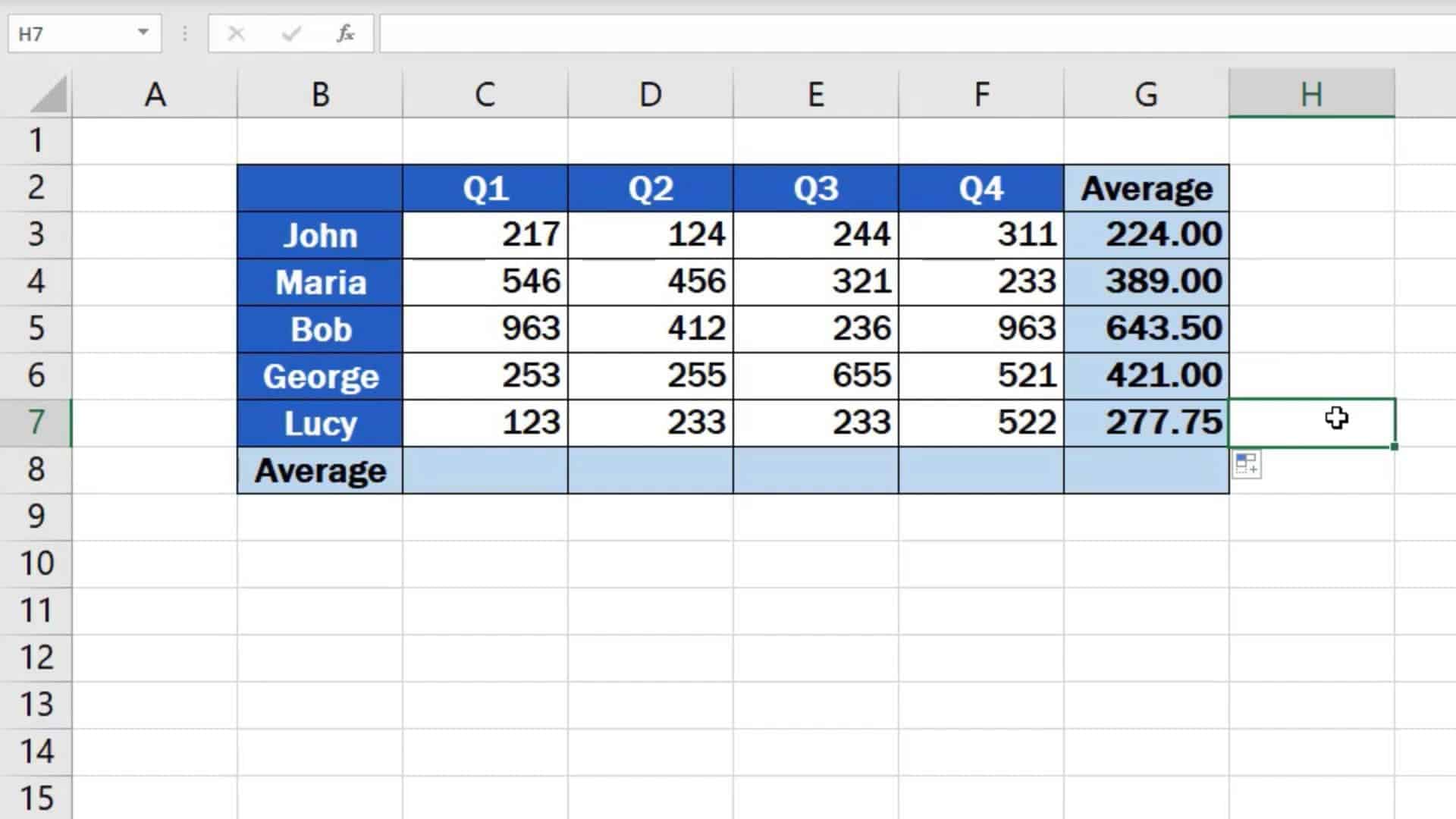 How to Calculate the Average in Excel

