Here’s the thing. The average is a liar. A lovable liar, but a liar. If you have one huge number and a bunch of tiny ones, the average gets bullied. Example: salaries at a company with one CEO and ten interns.
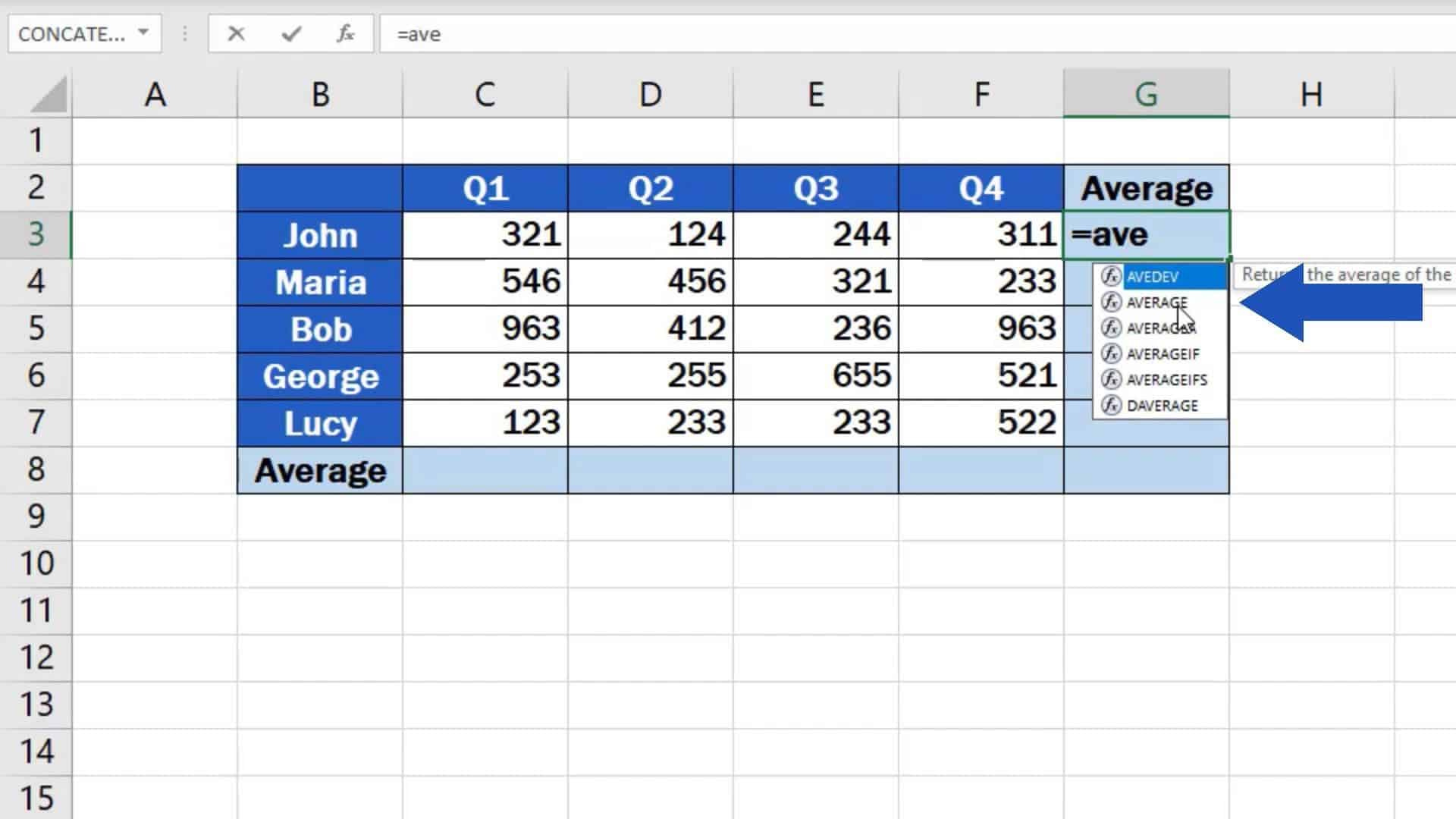
 Excel AVERAGE function with examples
The average says everyone makes $100,000. But the interns make $30,000. The average is misleading. That’s when you need the median. Use =MEDIAN( instead. It finds the middle number. Less bullying from outliers.
Or use the mode: =MODE.SNGL( for the most frequent number. It’s the popular kid in data school. Use averages, medians, and modes together. It’s like having a detective team for your numbers.
Quick Tricks to Feel Like a Pro
Don’t want to type the formula? Highlight your numbers, look at the status bar at the bottom of Excel. It shows the average automatically? Yep. Right there next to Count and Sum. Magic.
Want the average for only certain items? Use =AVERAGEIF(. For example, =AVERAGEIF(B2:B20, ">50") averages only numbers above 50. It’s like having a bouncer at a club for your data.
And if you have two conditions? That’s =AVERAGEIFS(. Yes, it has an “S” at the end. It’s the fancy cousin. You say, “Average this, but only if this column is ‘Apples’ and that column is ‘Red’.” Excel salutes you and does it.

