That little colon : in the middle? It’s the most powerful punctuation in Desmos. It means “then give me this.” Without it, Desmos will just stare at you blankly. Think of it as the : after a big sigh. “If this is true (sigh)... then print this.” It’s dramatic, and I love it.
But wait! You can have more than one mood swing. Add another condition with a comma. Type y = { x < 0 : x^2, x >= 0 : 2x + 1 }. Now the graph flips a switch at zero. Left side? Soft parabola. Right side? Aggressive line. It’s like Dr. Jekyll and Mr. Hyde, but with fewer lab accidents.
Fun fact: You can chain as many rules as you want. I once made a piecewise function with seven parts. It looked like a broken heartbeat on a hospital monitor. My math teacher gasped. My cat ran away. Use power responsibly.
The “Default” Trick
Here’s a secret hacks most people miss. What if you want a catch-all rule? Add a final condition with no “if.” Just type : 5 at the end. For example: y = { x < 0 : x^2, x < 5 : x, 5}. If x is not less than 0 or less than 5, it defaults to 5. It’s the “I give up” mode. Perfect for lazy Sundays.
Desmos also lets you use logic words like “and” and “or.” Want a function that only exists between x=1 and x=3? Write y = { 1 <= x <= 3 : x^2 }. That triple inequality is beautiful. It’s the mathematical equivalent of a hug. “Only exist here, my little parabola.”
Play with the domain restrictions. Use y = sin(x) { x < 0 }. You’ll get a sine wave that just stops at zero. It’s like a song that cuts off mid-note. Drives you crazy. That’s the point. Embrace the chaos.
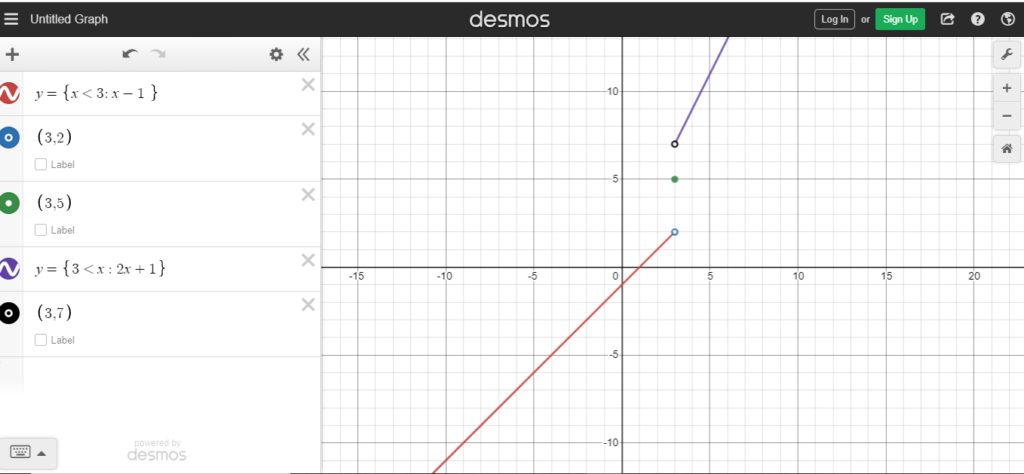 How to do piecewise functions on Desmos Graph Calculator?