Here’s a quick, funny truth: the average isn’t always perfect. If you and four friends earn $50,000 each, but one friend is a secret millionaire, the average jumps up. Excel has a cousin function for that, called =MEDIAN, which ignores the crazy highs and lows.
Think of it like this: average is the “let’s share everything evenly” method; median is the “let’s ignore the one guy who ate all the pizza.” Use average for everyday stuff like your electricity bills, and median if you’re looking at weird data, like house prices in your neighborhood.
Easy Steps to Get Started Right Now
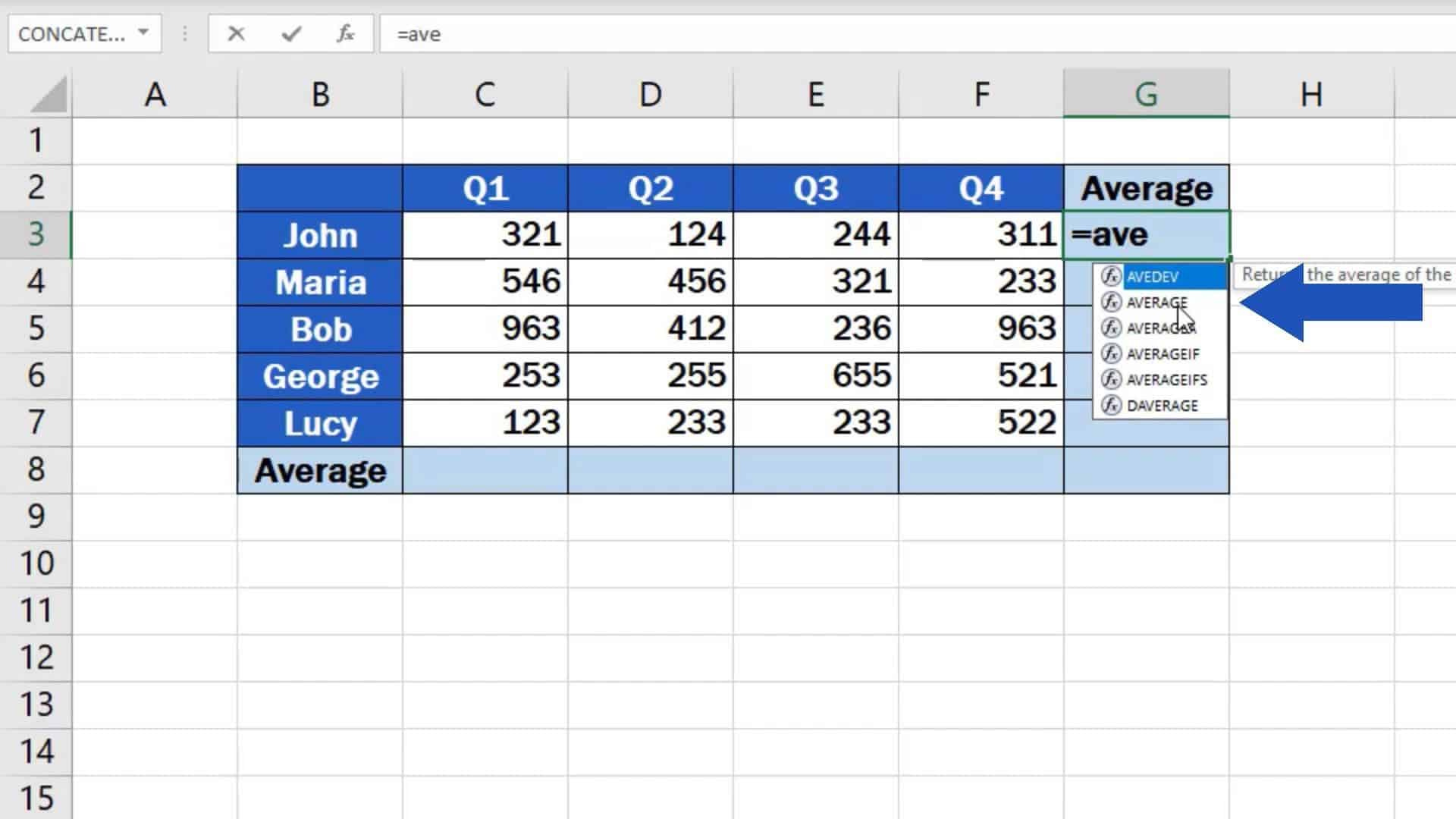
Open a blank Excel sheet and type in some numbers—say, your last five phone bills. Click on an empty cell below them. Then, type =AVERAGE( and drag your mouse over the numbers. Close the parentheses and hit Enter.
That’s it. You’ve just done more math than most people do in a week, and you didn’t even break a sweat. Give yourself a high-five—you’re officially a data detective.
 How to Calculate Averages in Excel

